Part 0 - Setting Up
Part 1 - Fundamentals
- 4 - Our Project
- 5 - Fragment and ViewModel
- 6 - Functions
- 7 - Recycler Views
- 8 - Wiring up with Kotlin
- 9 - ViewHolders
- 10 - Retrofit
- 11 - Connecting Rx
Part 2 - User Interface
Useful Links
Step 2 - Android Architecture
Before we get into building our first real Android app we’re going to cover some important Android Architecture basics.
Hopefully this won’t be too much boring theory - but understanding this stuff is vital to understanding
- how to find the components you’ll use to build your app
- by their Android API component names, and
- why they work the way they do.
The material in this section is also available as a set of Google Slides
CLEAN Architecture
Android’s latest designs - in particular MVVM which we’ll use in this project follow on from thinking by Robert “Uncle Bob” Martin who authored the original “CLEAN” design.
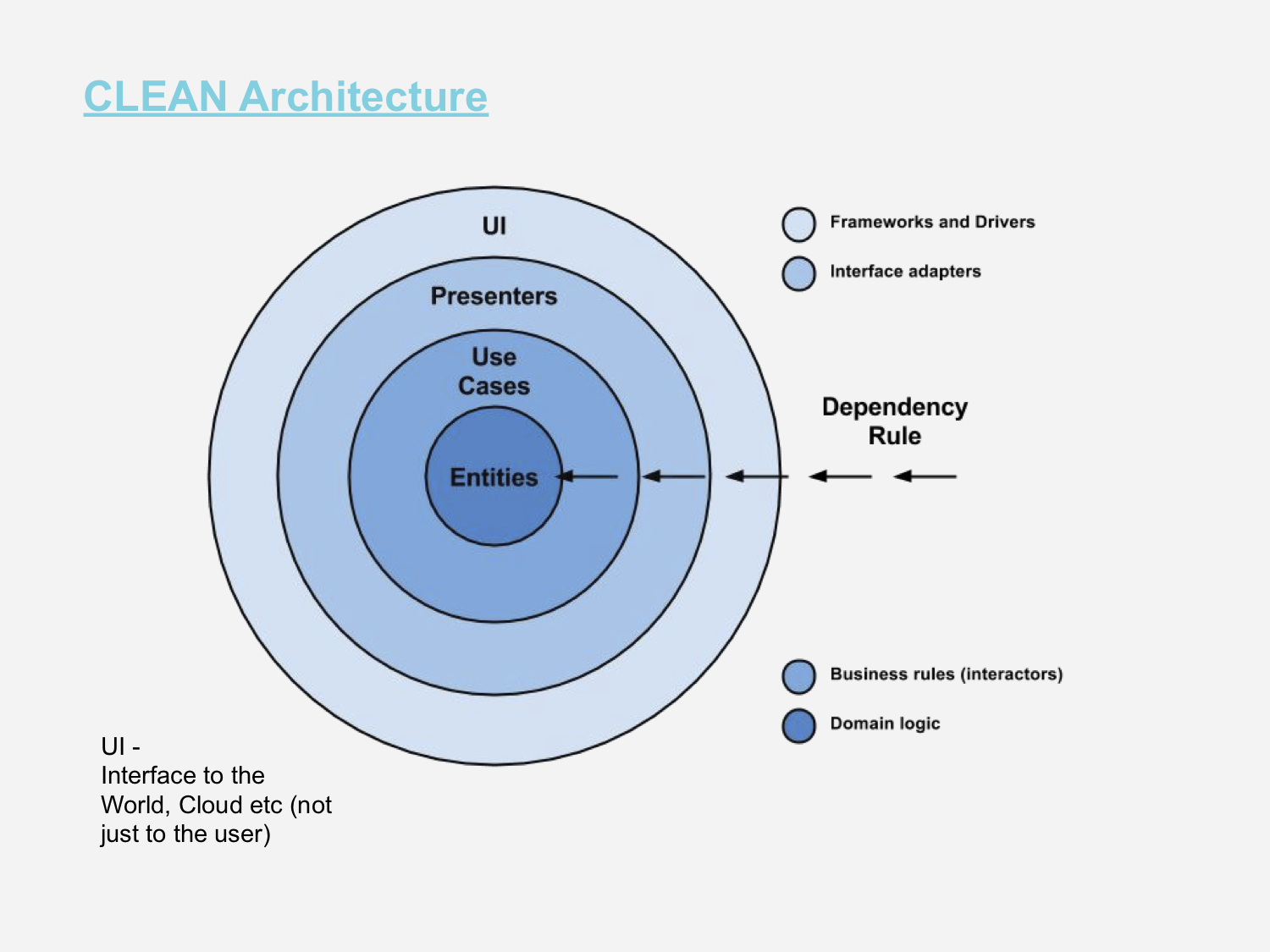
In this design all the parts of the broader app system (which includes the user, and all the external services) occupy an outer ring of interface. So when you see “UI” here, read it as “Interface” not just to the user.
As you move from that outer ring, in toward the center you move through views & controls which are mostly defined by Android concerns like having to put pixels on the screen via views and handle taps on the screen, or work with gestures & things like rotation of the phone.
Also this follows dependency: so the UI parts depend on presentation, which in turn depends on use cases (which Martin refers to as “Interactors”) and finally on the entities which the use cases handle. The implication for our app is that we should not have a UI related component, or a cloud service component that is a member variable of a use case, for example.
Implications of CLEAN
The last important point about CLEAN is that the components in the middle are pure code: we will write these in our app to model our own business logic, and they won’t generally require Android API’s - this is important because when we write unit tests we cannot use Android API’s as those are only enabled on a device (or emulator).
We can use the Android “UI Test” framework - known as Espresso to write those tests, but then even tho’ we’re using a “UI Test” framework they are not really UI tests if they’re testing our business logic. This is why its important to try to seperate these layers.
App Layers
What does CLEAN mean in an Android app?
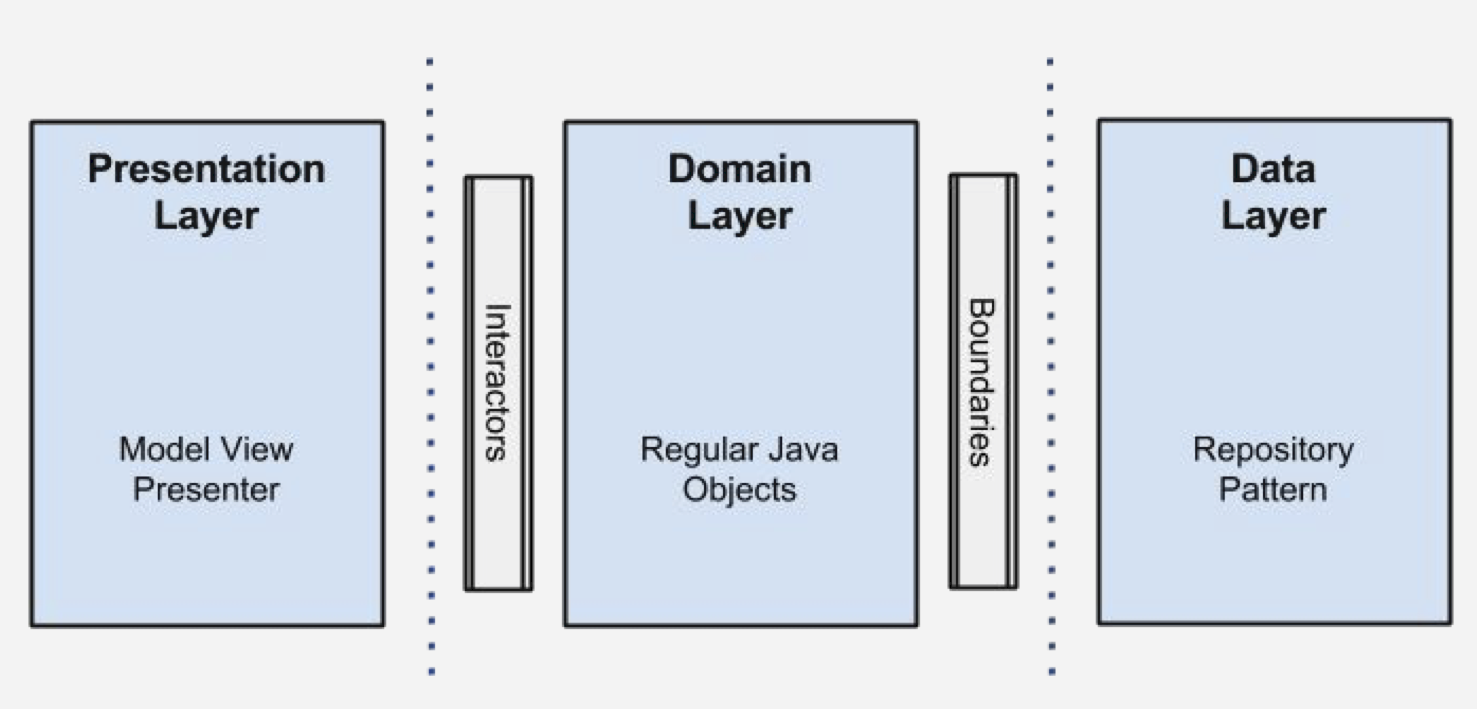
Going from left to right in this diagram we have the UI components in a seperate layer and this can be *MVP or Model-View-Presenter - or in our case Model-View-ViewModel - *MVVM.
Then we have the pure-code layer, also called the Domain layer which is made of Kotlin that we ourselves write to model our business logic. For example here we’d take data from the cloud data layer and transform it to our needs ready to be passed to the UI.
Finally on the right the data layer is our Repository code that models stores of data, possibly just kept in memory, but often backed by a database or shared-preference files or some other mechanism.
Note those boundaries - how do we connect across those?
Android Components
In an Android app in 2019 these layers look like this:
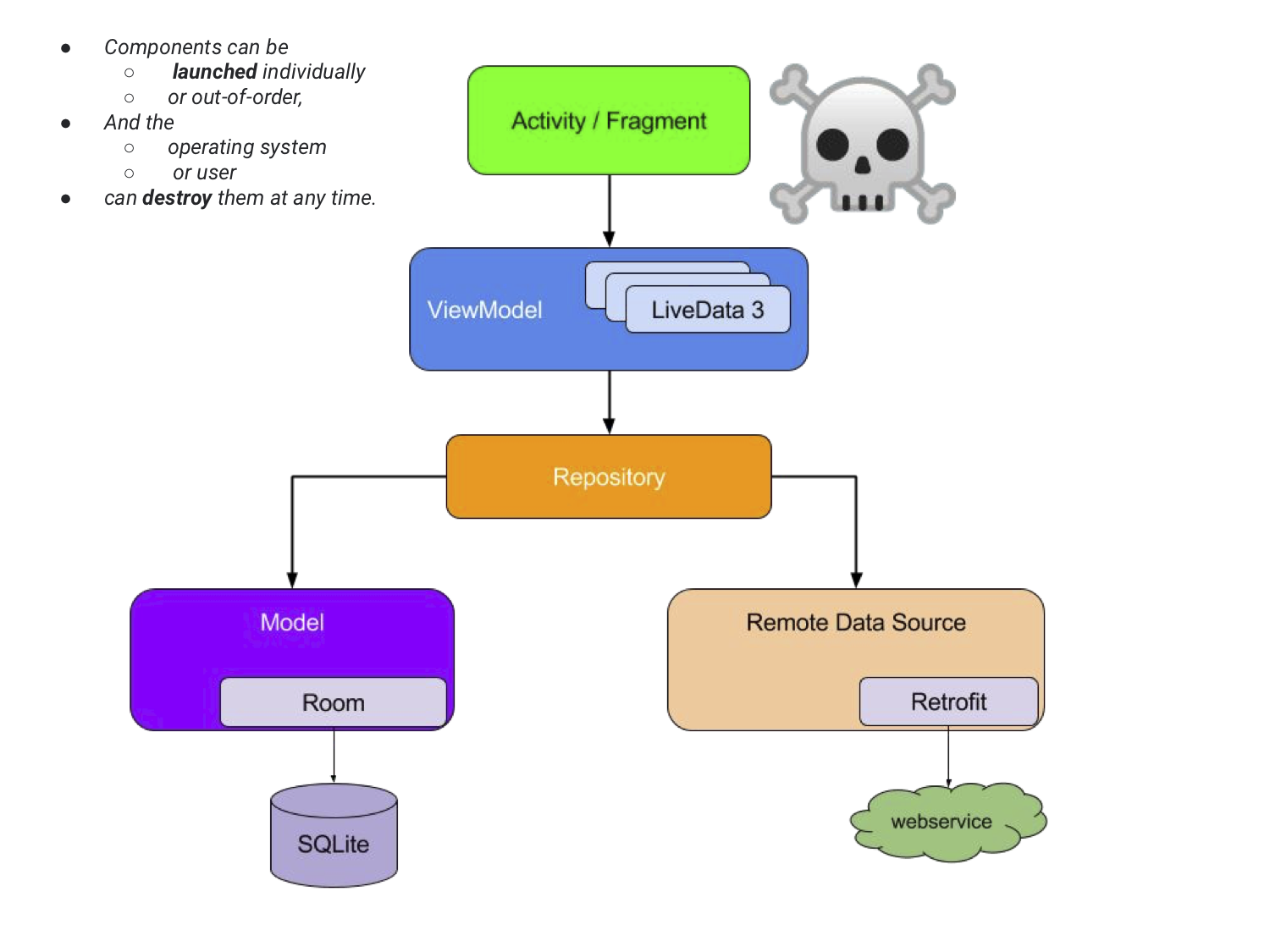
This diagram comes direct from the Android Jetpack Guide.
These are names of Android API components that we’ll see as we build our app:
RoomRetrofitViewModelActivityandFragment
Note that skull & cross-bones. What’s that doing there?
A key hallmark of a good mobile developer is that they really understand the fact that the mobile operating system controls your app - in particular your UI components - the Activity and Fragment can be killed off at any time.
Android Lifecycle
Whoah!? Killed off?
Mobile devices are constrained in memory so at any time your app has its view concealed by the user opening another app over the top, or even opening a view from another part of your app the system very likely will remove that previous view from memory.
Here’s other things that can cause your views to change, go to sleep, be removed, started or stopped or created again:
- User takes a photograph (big memory hog)
- User makes a phone call or video call
- Switch out to a web view or password manager
- Screen rotation or screen lock
- …many more
This Android Lifecycle is not in your control as a developer.
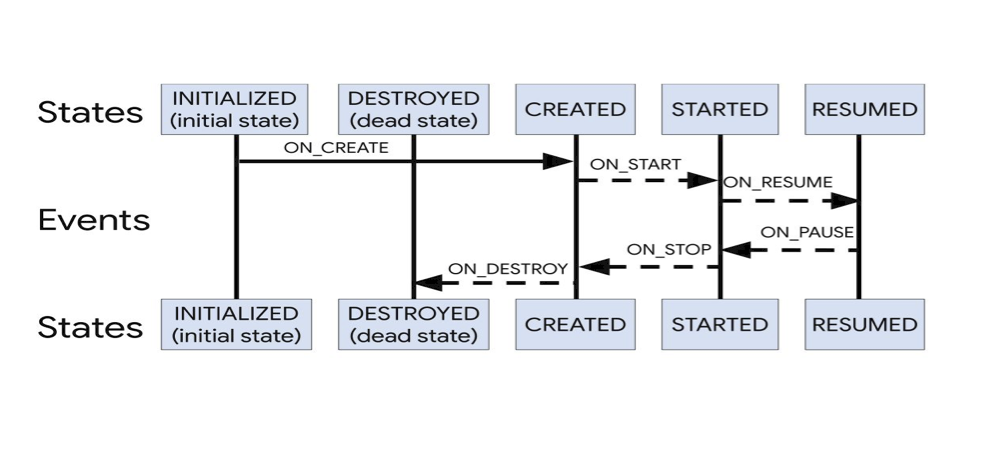
What’s more the order of these events is not in your control either.
Lifecycle Aware Components
To deal with this Google’s Android team relatively recently came up with a set of so called “Lifecycle Aware” components, because it can be so fraught & error-prone to write your own code to handle these life-cycle changes.
The key feature is Live Data which we’ll come to soon. Live data is a life-cycle aware way to connect across UI-VM boundaries without crashes when the UI part goes away.
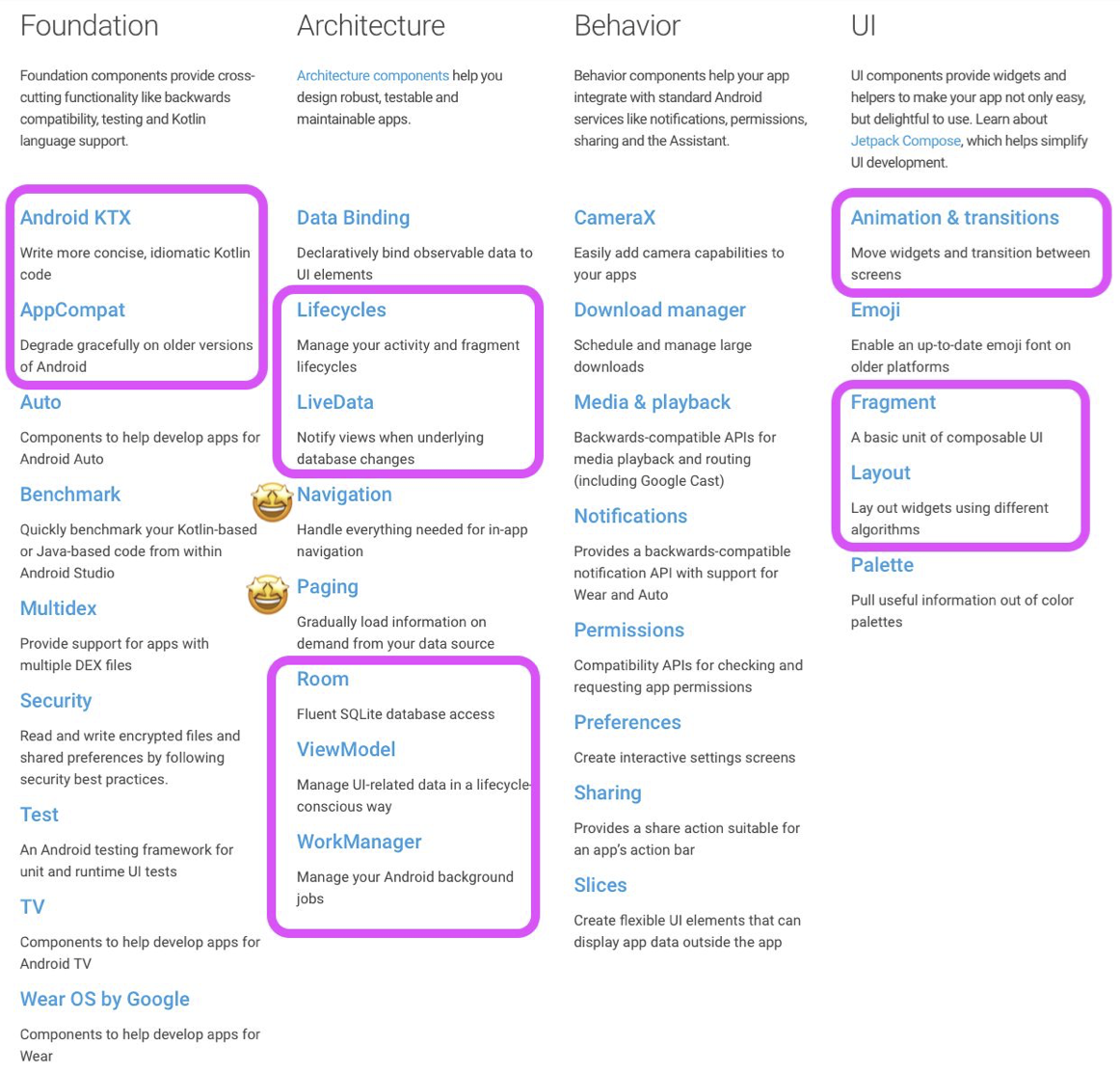
These are part of Android’s Jetpack software project which adds a number of useful features to the Android eco-system.
The other parts of Jetpack that we’ll be interested in are highlighted above.
Kotlin Extensions for Android - KTX
These allow us to make our UI coding much simpler by using an automatic name-spacing-in of the UI components that we create using Android’s layout editor - directly into our code. In the past developers were forced to use clunky & error prone findById(...) logic.
The findById(...) process is analagous to Javascripts getElementById(...) method. Like that
method if the component doesn’t exist you as the developer can be unaware. The IDE integration
from KTX makes this much less error prone.
Acknowledgements
The diagrams above come from “Android Clean architecture” Github project where they are Apache 2.0 licensed. The ideas and original diagrams come from the Robert Martin Clean Architecture articles.